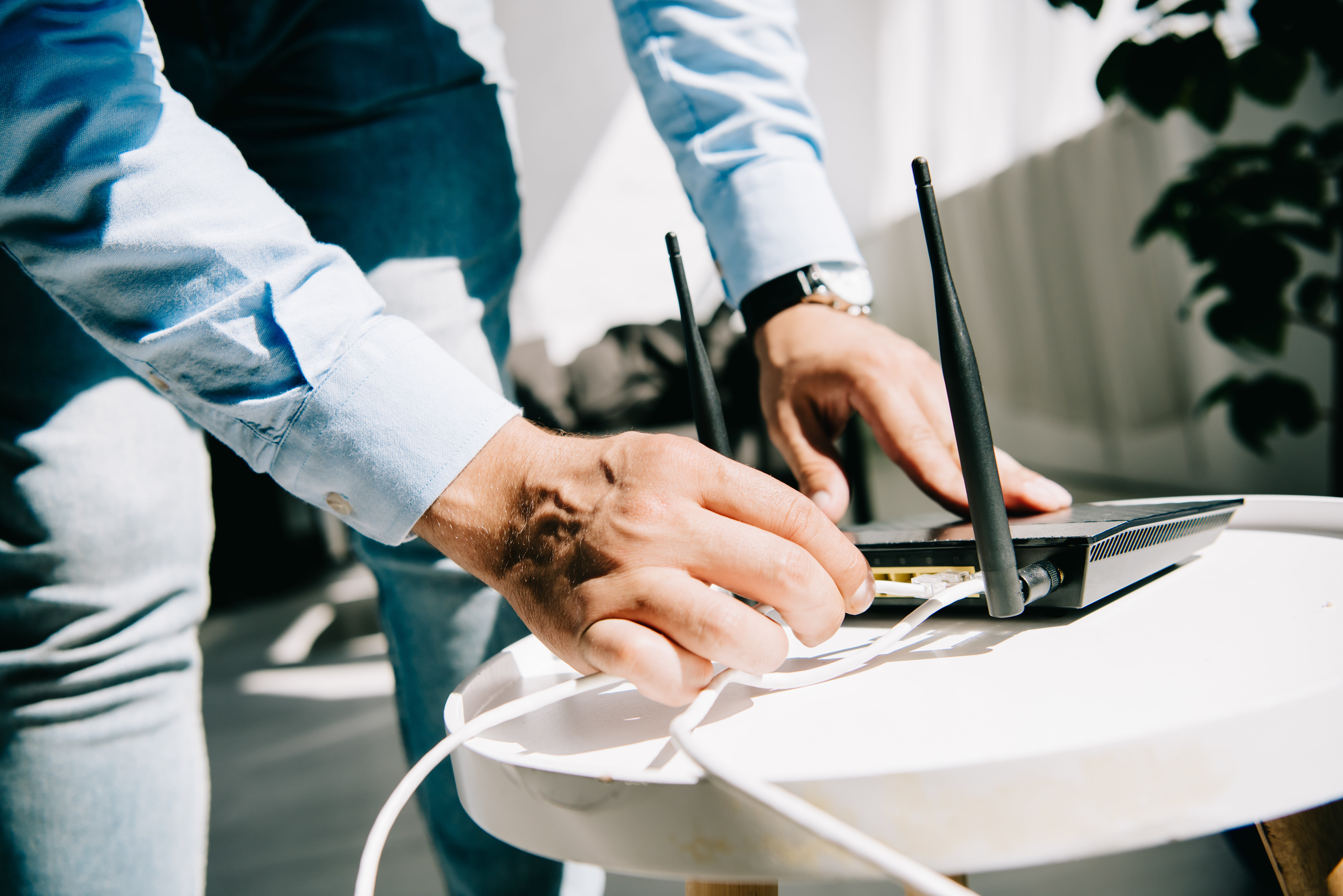
Step 1: Check Power
Make sure your modem and router are plugged in and powered on.
- Verify power lights are illuminated.
- Check that power cords are securely connected.
- If using a power strip, ensure it is turned on.
Step 2: Check Connections
Confirm all cables are securely connected.
- Ethernet cables should be firmly plugged into the modem and router.
- Look for any loose or damaged cables.
Step 3: Restart Your Equipment
A simple restart can resolve many connectivity issues.
- Unplug the power cord from your router.
- Wait 30 seconds.
- Plug the router back in.
- Allow up to 5 minutes for it to fully reconnect.
Step 4: Test Your Connection
- Try loading a website on your device.
- Connect another device to Wi‑Fi to see if the issue persists.
- Move closer to your router to rule out signal issues.
Step 5: Check for Wi‑Fi Issues
If some devices work but others do not:
- Verify you are connected to the correct Wi‑Fi network.
- Forget the network and reconnect.
- Restart the affected device.
Still Need Help?
If you've completed these steps and still cannot connect, please contact BEC Communications Technical Support for assistance.